
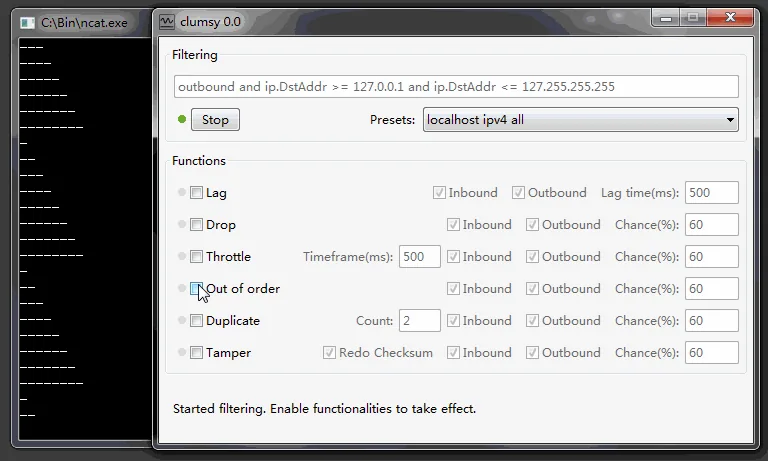
Measure a baseline, apply 200-300 ms of Lag to one authorized test target, repeat a known action, inspect feedback and timeout behavior, then stop Clumsy and rerun the baseline.
01
What the Clumsy latency simulator does
When Lag is enabled, Clumsy holds matching packets for the configured delay before releasing them. The application under test continues to use its normal network path; no proxy configuration or code change is required. This system-wide behavior is valuable when a team needs to observe a real desktop or browser workflow rather than an isolated mocked request.
Latency is different from bandwidth. A connection can have high throughput and still make every interaction feel slow because each request waits before data begins to arrive. Conversely, a low-bandwidth transfer may start promptly but progress slowly. Use Lag when the question concerns response delay, round trips, loading feedback, timeouts or perceived responsiveness. Use Throttle when the question concerns sustained transfer rate.
The official 0.3 release increased the upper Lag bound to 15 seconds, but an extreme value is rarely the best first test. Begin with a delay that resembles a plausible poor connection and increase it only when the test objective requires a boundary.
| Condition | What changes | Typical product question |
|---|---|---|
| Latency | Time before matching packets continue | Does the UI explain that work is still in progress? |
| Bandwidth limit | Data transferred per unit of time | Does a large transfer show useful progress? |
| Packet loss | Some matching packets never arrive | Do retries and reconnects recover? |
| Jitter-like variation | Delay varies across traffic | Does the experience remain stable when timing is inconsistent? |
02
Design a useful latency test before pressing Start
Name one user action and one expected outcome. For example: opening an order detail page under 300 ms added delay should show an immediate loading state, prevent duplicate submission and eventually render the correct order without losing the previous screen. That is more actionable than ‘see whether the app is slow.’
Measure the action without Clumsy first. Record approximate completion time, visible state changes and any network or application logs you intend to compare. Then choose one target and one delay. Keep packet loss, duplicate, out-of-order and tamper disabled during the first run so the result has a clear cause.
Decide the recovery check in advance. After selecting Stop, repeat the same action and confirm it returns to the baseline range. If it does not, the environment has not recovered and the latency result should not be treated as isolated evidence.
- One application action per test case.
- One filter that matches only the authorized target.
- One Lag value per run.
- A visible pass condition and a baseline comparison.
- A required Stop and recovery check.
03
Run a Clumsy latency test step by step
Download and extract official Clumsy 0.3, then run it with the permissions approved for the test computer. Enter a narrow WinDivert filter for the intended traffic. Filter syntax should come from official Clumsy and WinDivert documentation, not from a copied lag-switch configuration whose scope you do not understand.
Enable Lag and enter a modest delay such as 200 or 300 milliseconds. Confirm other modules are disabled. Select Start, perform the baseline action once, and observe the interface, application logs and server behavior. Avoid changing the delay during the run because that produces an ambiguous result.
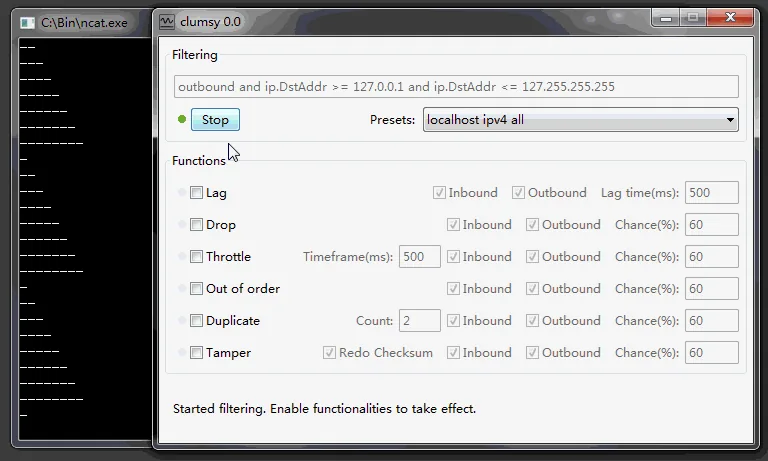
Select Stop, record the result, and repeat the action without impairment. If you need another boundary, create a separate run with a higher delay such as 600 ms or 1,000 ms. Keeping each value in its own run makes comparisons and bug reports much clearer.
- BaselineMeasure the normal action before impairment.
- ScopeSet a narrow filter for the authorized target.
- DelayEnable Lag with one documented value.
- ObserveCheck UI feedback, timers, cancellation, retries and logs.
- RecoverSelect Stop and prove the action returns to baseline.
04
Build a practical delay matrix
A small progression gives more useful evidence than a single dramatic value. Start near normal poor-network conditions, then test a moderate and severe boundary. The values below are examples for planning, not promises that every user's network behaves the same way. Actual round-trip time already present in the environment adds to the configured impairment.
Test both a quick interaction and a longer workflow. A search suggestion may need feedback within a fraction of a second, while a background sync can tolerate a longer delay if it communicates progress and safely retries. The expected outcome must match the product's real requirement.
Do not use delay alone as proof of mobile-network quality. Real mobile connections can also have jitter, loss, bandwidth changes and handoffs. Establish delay behavior first, then add other conditions in separate documented scenarios.
| Example added delay | Test purpose | What to inspect |
|---|---|---|
| 200 ms | Mild delay | Immediate feedback and interaction responsiveness |
| 300-600 ms | Poor interactive connection | Loading states, repeated clicks and request queues |
| 1,000 ms | Severe delay | Timeout assumptions, cancellation and stale UI |
| Several seconds | Explicit boundary test | Long timeout messaging and safe recovery |
05
What to observe beyond total loading time
Measure the first visible acknowledgement after a user action. A delayed server response should not make a button appear dead. Look for a loading indicator, disabled duplicate action, progress message or other immediate feedback. Check whether keyboard and navigation controls remain usable while the request is pending.
Inspect timeouts at every layer. A browser request, client library, reverse proxy and server may use different timers. Clumsy reveals the symptom, but logs are needed to identify which timer fired. Capture request identifiers and timestamps so client and server events can be aligned.
Test state preservation and recovery. Form data, selected filters and navigation context should not disappear merely because a response is late. When the network improves, the application should either complete safely or present a clear retry path without duplicating an operation.
A pass is not merely ‘the request eventually completed.’ The interface must remain understandable and protect user state while the response is delayed.
06
Avoid common Clumsy latency testing mistakes
Do not match all traffic when the test concerns one service. Broad scope can delay analytics, authentication, unrelated tabs and the tools you use to observe the test. Do not enable Drop at the same time during the first latency investigation. A missing packet and a delayed packet create different recovery paths.
Do not rely on feel alone. Record the baseline, configured delay, application timestamps and visible outcomes. Do not leave Clumsy running after the session; select Stop, close the program and confirm the baseline. Finally, do not use latency impairment to gain an advantage in games or disrupt services. The authorized QA workflow and recovery record are part of responsible use.
If a result cannot be reproduced, reduce the scenario to one request, one filter and one delay. Repeat it several times and compare application logs before adding complexity.
FAQ
Clumsy latency simulator FAQ
How much latency should I add first?
A modest 200-300 ms is a useful starting point for many interactive tests. Choose values based on your product requirement and existing baseline.
Is Clumsy Lag the same as bandwidth throttling?
No. Lag delays matching packets; Throttle limits transfer rate. Test them separately before combining conditions.
Can Clumsy simulate jitter?
Clumsy provides probability and timing controls that can create variable behavior, but define and document the exact configuration rather than labeling every variation as a standard jitter model.
Why does the application still seem slow after I stop?
Close Clumsy, confirm its process ended, rerun the baseline and check VPN, proxy, firewall, caches and application state. Do not accept the test until recovery is demonstrated.
Can I use Clumsy latency settings for gaming?
This guide is for authorized software and network reliability testing. It does not provide lag-switch or anti-cheat bypass instructions.